Opening WarpTune Desktop the first time
WarpTune Desktop is not signed with a paid Apple or Microsoft certificate. That is a choice, not an accident: the downloads are checked another way (below), and the source is public. The price is one warning the first time you open it — macOS Gatekeeper and Windows SmartScreen do not know the publisher. This page shows each step with the real dialogs.
Check the download first. Every release lists
SHA256SUMSandSHA256SUMS.bundle(signed with the project’s cosign key). On macOS or Linux:shasum -a 256 <file>and compare with the line inSHA256SUMS; on Windows:certutil -hashfile <file> SHA256. Only open a file whose checksum matches.
macOS
-
Open the downloaded
WarpTune-Desktop-<version>-aarch64.dmg(Apple silicon) or…-x86_64.dmg(Intel) and drag WarpTune Desktop onto Applications. -
Open WarpTune Desktop from Applications. macOS refuses the first time. Click Done (not Move to Trash).
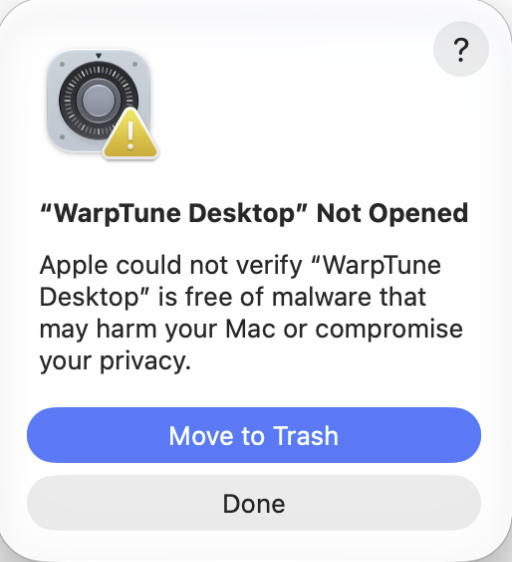
-
Open System Settings → Privacy & Security, scroll to the bottom and click Open Anyway next to “WarpTune Desktop” was blocked.
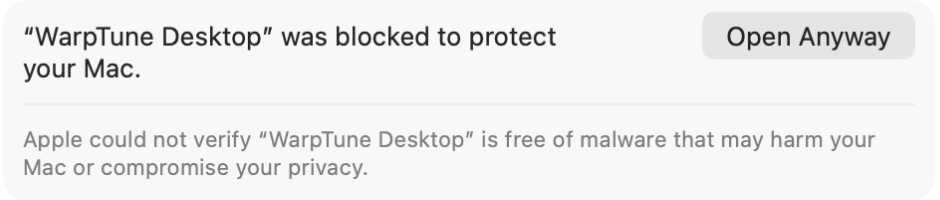
-
Open WarpTune Desktop from Applications once more. macOS asks a last time — click Open Anyway and confirm with your password or Touch ID.
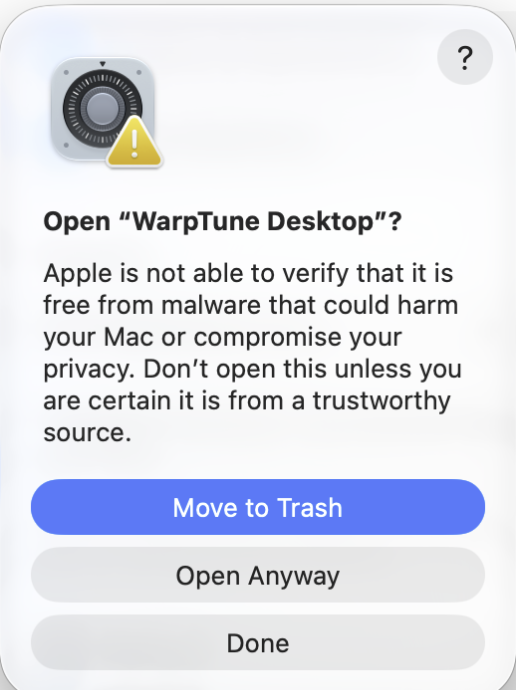
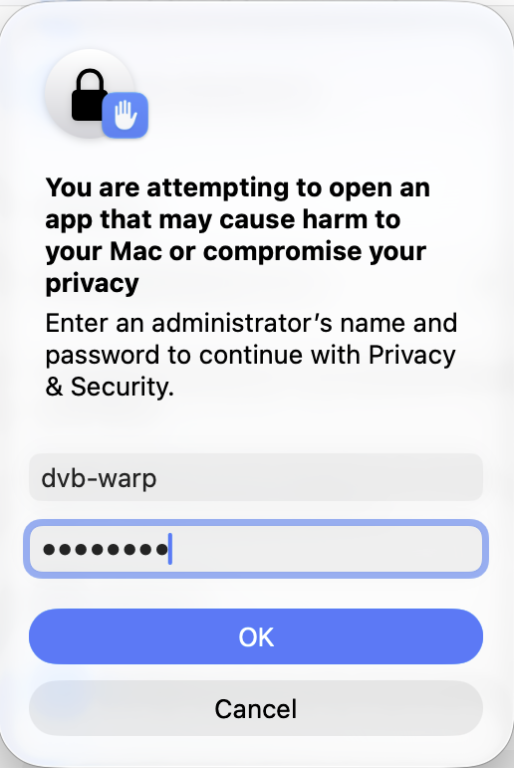
If nothing seems to happen after Open Anyway in step 3, that is macOS waiting for this confirmation behind other windows: simply open the app again from Applications.
-
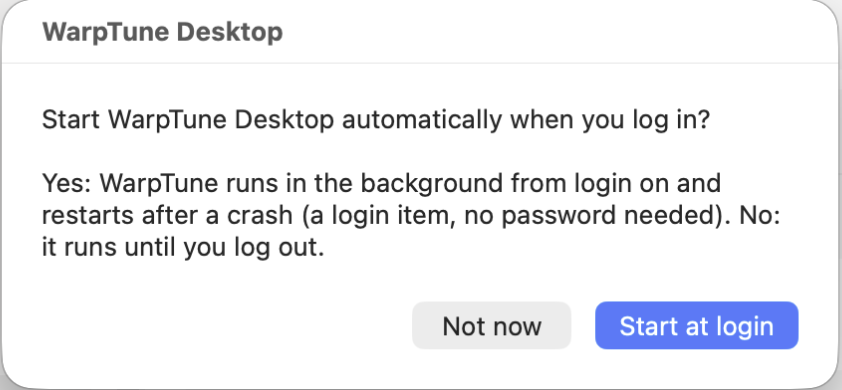
On the first start WarpTune asks whether it should start at login. Start at login keeps it running in the background (a login item, no password needed); Not now runs it until you log out.
-
Your browser opens
http://127.0.0.1:8766/— WarpTune Desktop. The page is only reachable from this computer.
From now on a double-click on the app only opens the page.
Windows
-
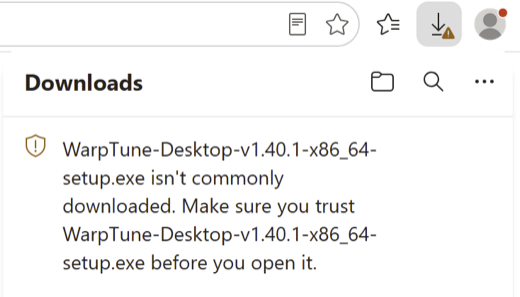
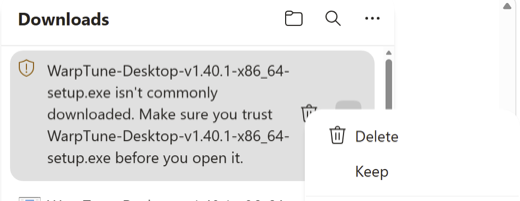
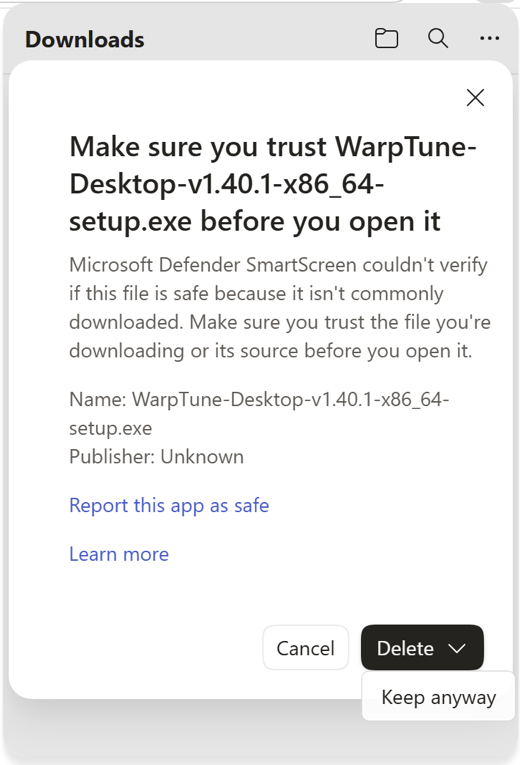
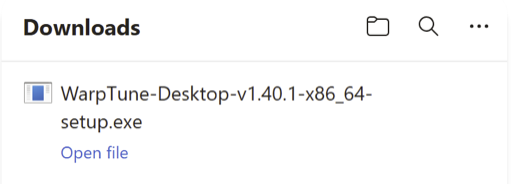
Download with Edge. Microsoft Edge holds the installer back before SmartScreen does: the download list says “… isn’t commonly downloaded. Make sure you trust … before you open it.” Point at the entry, click … and choose Keep. Edge asks once more (Make sure you trust … before you open it, Publisher: Unknown): open the arrow next to Delete and choose Keep anyway. Then click Open file. Other browsers may show a similar warning.
-
Open the downloaded
WarpTune-Desktop-<version>-x86_64-setup.exe. SmartScreen stops it: click More info.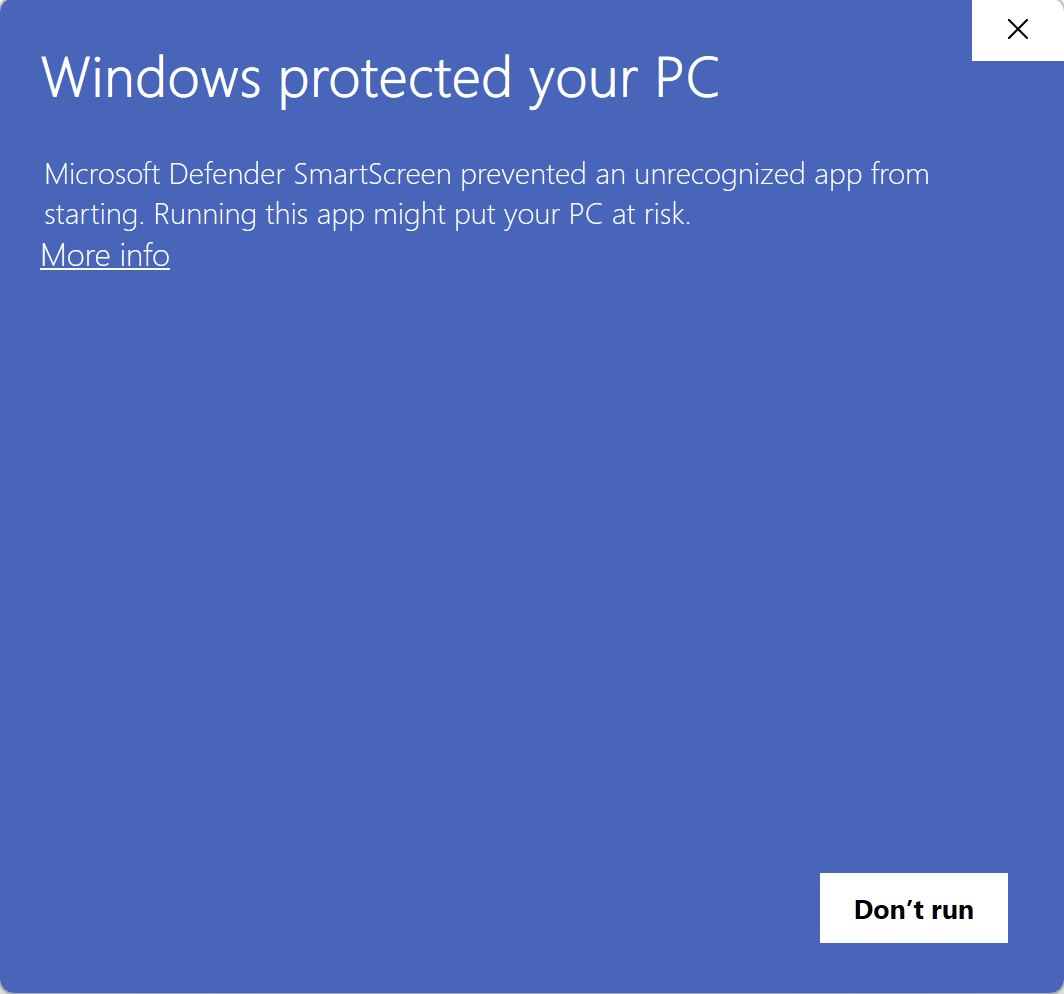
-
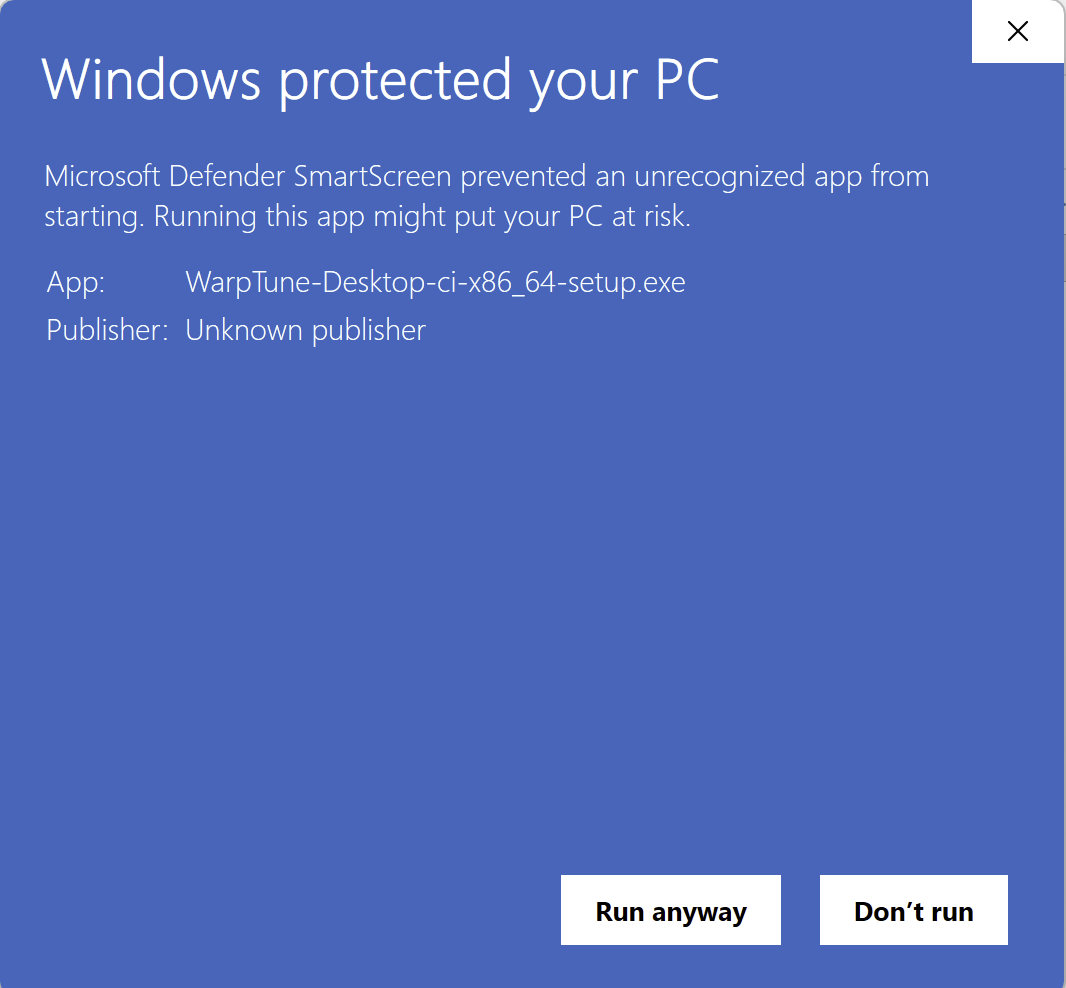
Click Run anyway.
-
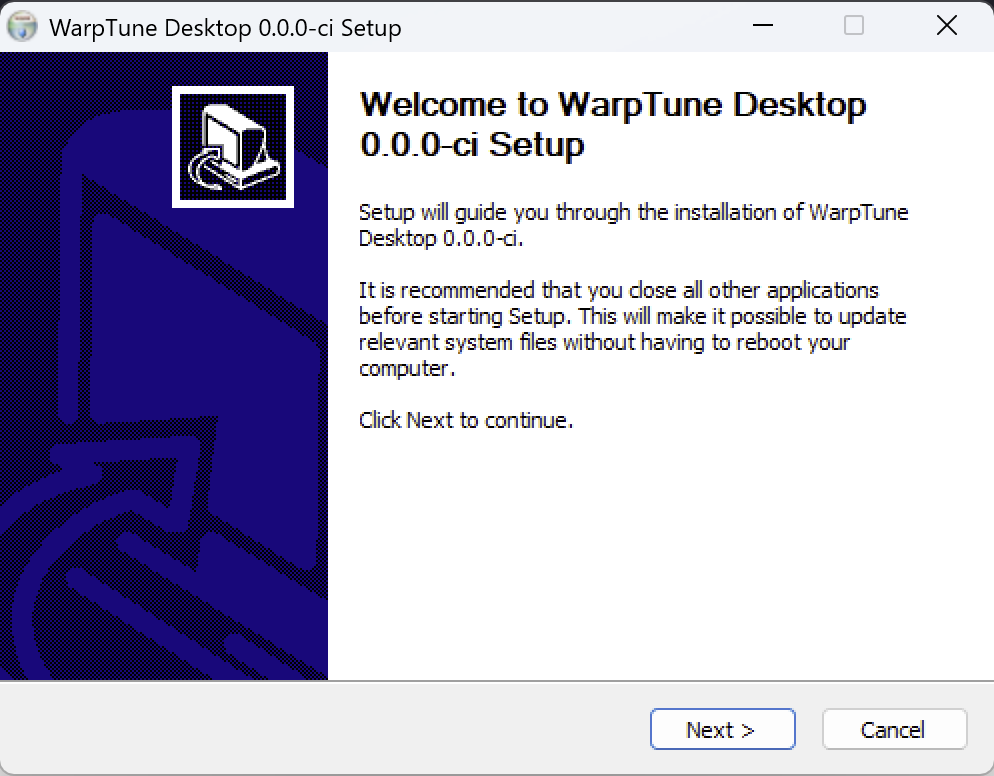
The installer needs no administrator rights. It installs to your user folder, adds a Start-menu entry and starts WarpTune at sign-in (visible and switchable in Task Manager → Startup apps).
-
At the end your browser opens WarpTune Desktop.
WarpTune opens no port in your network on Windows, so the firewall does not ask anything.
First steps
Go to Add miners and click Search the network. WarpTune lists the AxeOS, NerdOS and WarpAxe miners it finds; Check shows what it reads from one (board, chip, firmware, the point it runs at, the power supply).
Add in dry run adds the miner without writing anything to it: WarpTune watches and keeps a journal. When you are happy with what it would do, the live switch on the device card lets it write clock and core voltage — never above the voltage you set by hand, never below the regulator’s clean range, and within 90 % of the board’s and 80 % of the power supply’s limit.
One WarpTune per miner. If a miner is already tuned by another WarpTune (for example a dvb-WarpPool installation), leave it in dry run here, or remove it there first.
Linux
sudo apt install ./dvb-warptune_<version>_<arch>.deb (or make the
AppImage executable and start it), then click WarpTune Desktop in the
applications menu. Linux does not show a publisher warning. Details and
uninstalling: WarpTune setup guide.